Redistribute Attributes
The Redistribute tool is designed to automate the process of moving attributes from one attribute group to another. It provides several comparison strategies that allow you to reorganize your catalog's structure easily and accurately.
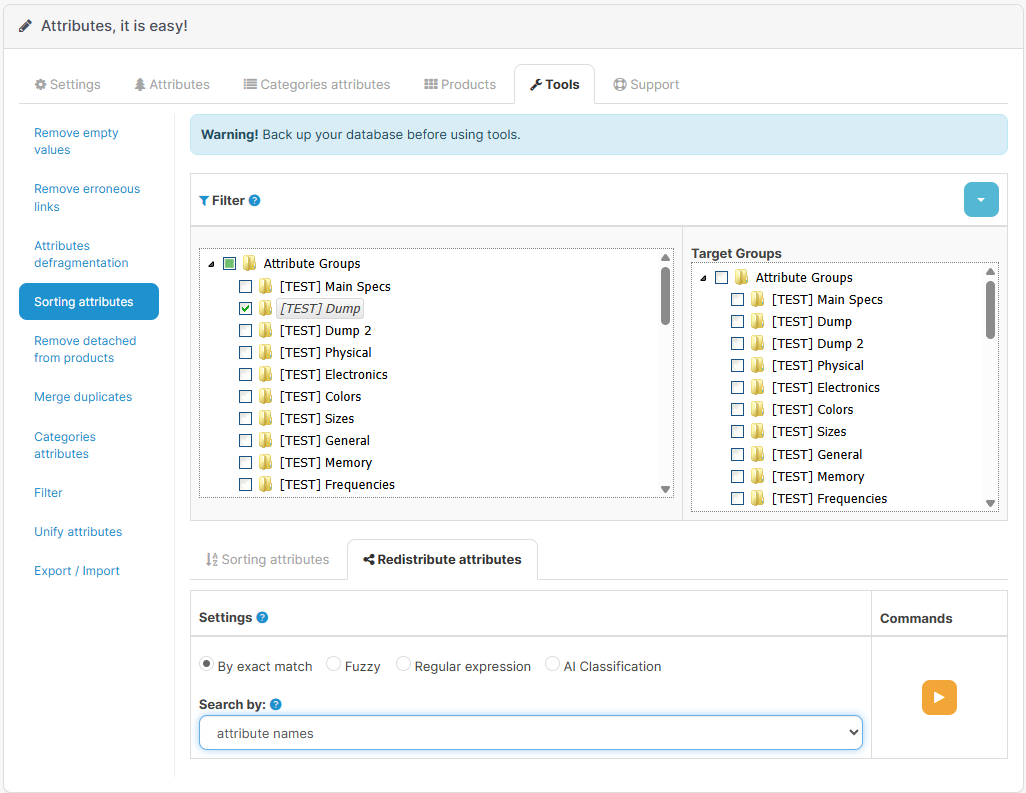 |
|---|
| Redistribute Interface |
Overview
When managing large catalogs, attributes often end up in generic groups like "Unknown" or "General". The Redistribute feature allows you to select source groups and automatically distribute their attributes across your chosen target groups using different comparison and matching modes.
If no target groups are selected, all available groups (except the source ones) will be used as targets.
Search Criteria
Before selecting a comparison mode, you choose which field to search against:
- Search by Attribute Names: The comparison is performed strictly on the attribute names. This is the classic approach for merging duplicate attributes.
- Search by Attribute Values: The comparison is performed on the attribute values. If needed, the values can be split into separate elements using a specified delimiter (e.g.,
/) before comparison. This is ideal for consolidating attributes that share identical or similar values.
Available Modes
Depending on your needs, you can choose from the following comparison modes (which apply to your chosen search criteria):
1. Strict Match (strict)
This mode requires the text in the source to be identical (case-insensitive) to the target candidate. It is the fastest method and is recommended for exact attribute consolidation.
2. Fuzzy Match (fuzzy)
This mode performs an approximate comparison (with an >80% similarity threshold). It's incredibly useful for catching minor typos, variations, or different word orders (e.g., "Power Consumption" vs. "Power").
3. Regular Expressions (regex)
Using predefined patterns, this feature can accurately detect and match specialized values. For example, it can recognize memory sizes (KB, MB, GB, TB) or frequency units (Hz, MHz, GHz) inside your values.
5. AI Classification (ai)
The most advanced mode uses Artificial Intelligence (OpenAI) to analyze the semantics of your attributes and their values, then intelligently assigns them to the most appropriate target group based on existing examples.
How to Use the AI Mode
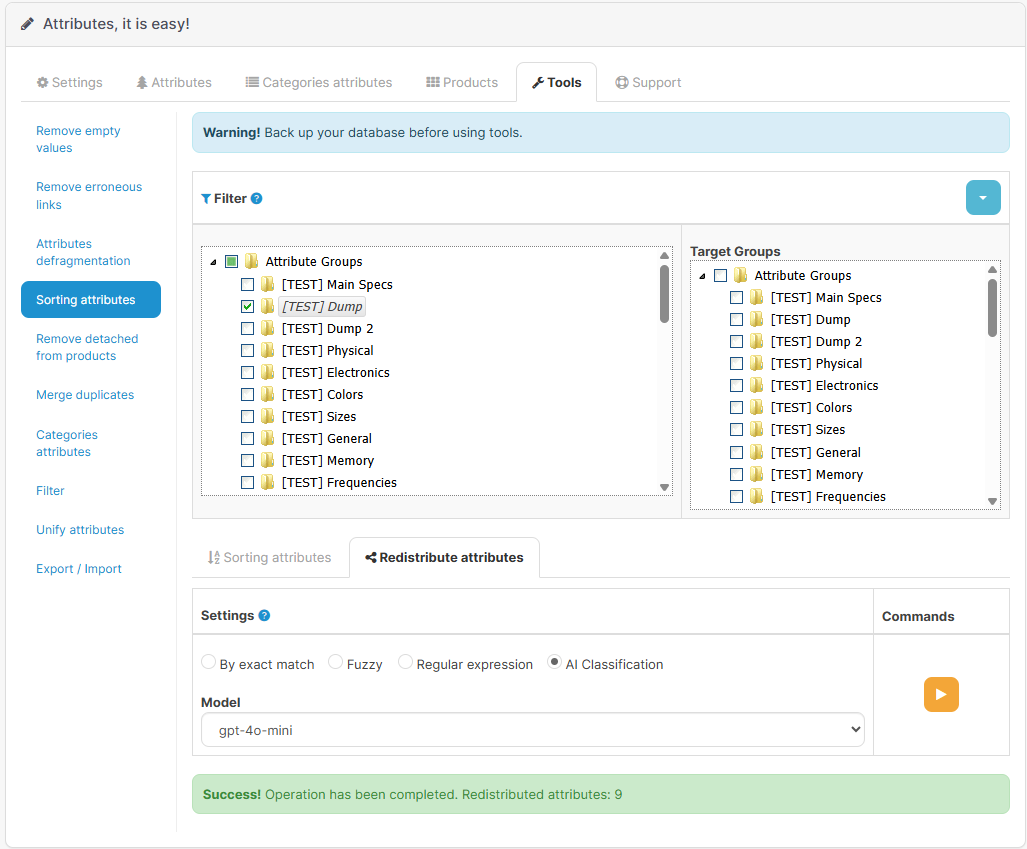
To use the AI mode, follow these steps:
- Ensure you have entered your OpenAI API Key in the module settings.
- Select your desired AI model (e.g.,
gpt-4o-mini). - Choose the Source Groups containing the attributes you want to classify.
- Choose the Target Groups where the attributes should belong (if none are selected, all other groups will be used).
- Select
aiin the Mode dropdown. - Click the execute button.
 |
|---|
| AI Classification Settings |
The AI will analyze up to 10 existing attributes from each of your target groups to understand context. It will then intelligently route your unclassified attributes into the most specific and accurate group.
The AI relies on the names and values of your existing attributes to make decisions. Having well-populated and accurately named target groups will yield the best classification results.
Best Practices
- Batch Processing: The tool paginates through your catalog (e.g., 100 attributes at a time) to prevent server timeouts. You can safely run the tool across huge catalogs.
- Review Before AI: Test the AI classification on a smaller set of source groups before applying it to your entire "Unknown" group to ensure your target group contexts are clear.
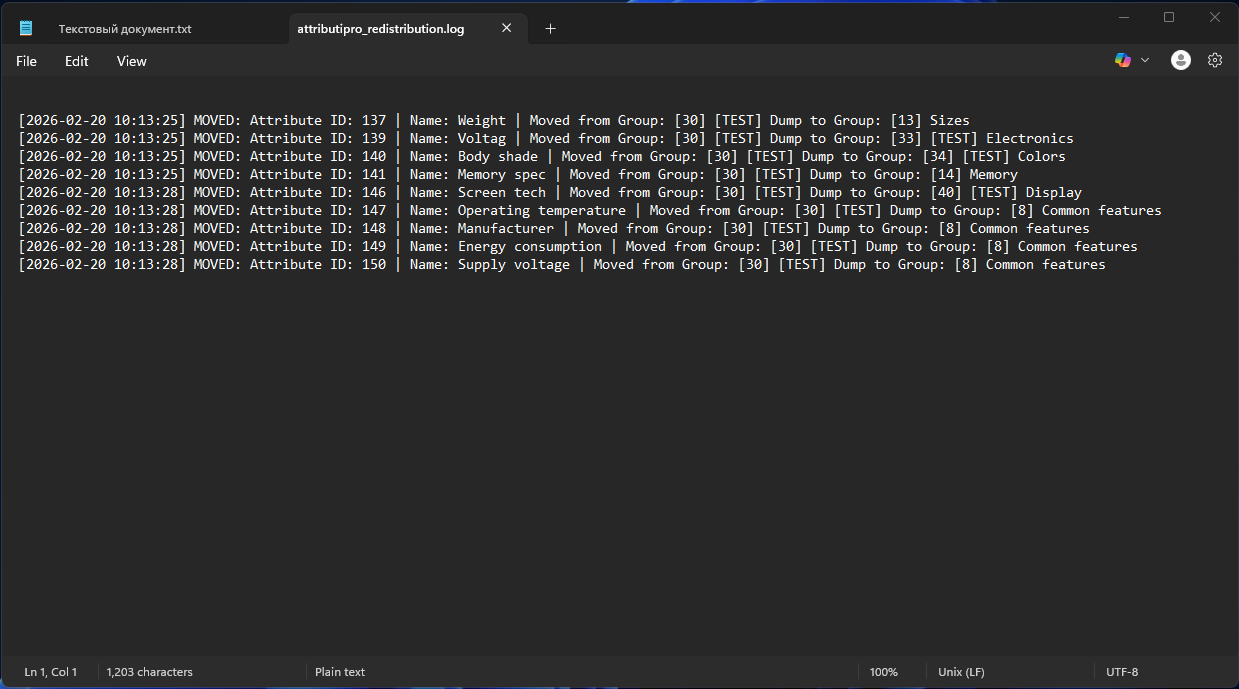
- Check the Logs: Every attribute moved by the Redistribute tool is recorded. Check your logs if you need to trace where a specific attribute was moved.
 |
|---|
| Redistribute Logs |