Attribute Value
Clicking on a table cell containing a Value will launch a modal window with a form for editing the Value itself and its metadata.
Editing metadata differs from editing the Duty Template only by the presence of the SEO URL field.
The Attribute Value field can be filled in manually or selected from ready-made Values in the dropdown list at the very top of the form. The list is formed according to filter and view settings.
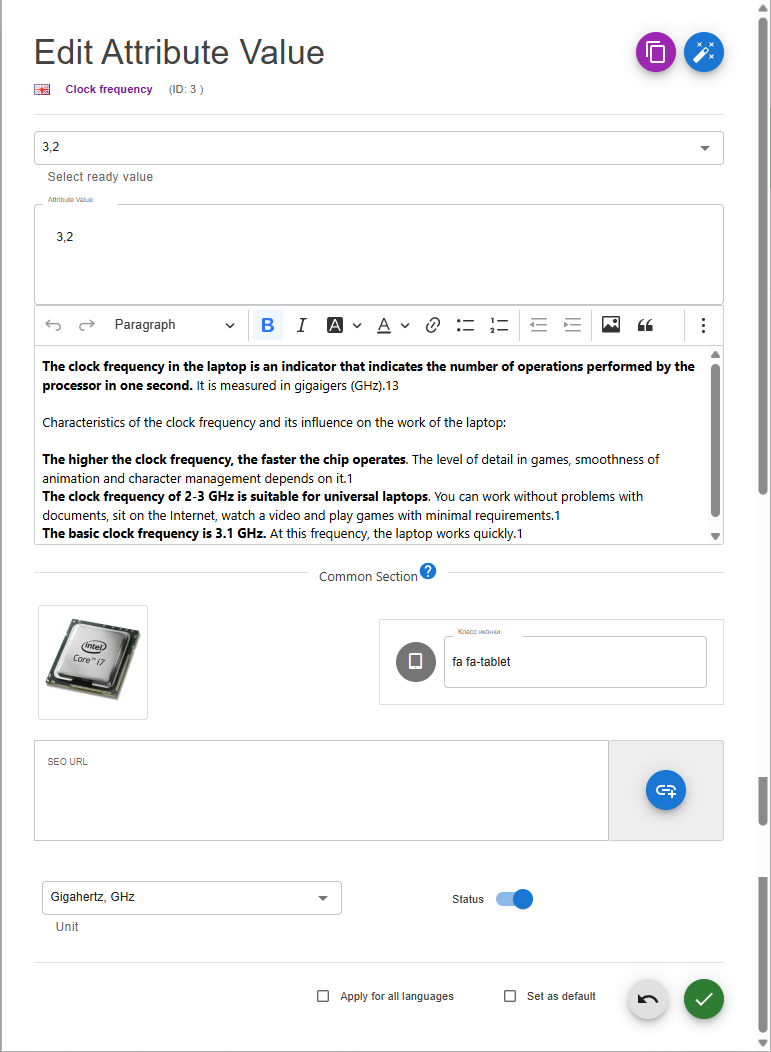 |
|---|
| Value Form |
Creating a Link (URL)
The purpose of this field was noted in the general description of metadata.
The link can be entered manually or generated by clicking the 🔗 button to the right of the field. Generation will be based on the rules specified in the saved profile.
Manage visibility
Status is used to manage visibility of a value.
Cloning
At the bottom of the form, next to the save and cancel buttons, there is a special checkbox Apply to all languages. If checked, when saving the form, complete copying of localizable data will occur for all languages.
Setting as Duty Template
You can save all the data from this form as a Duty Template to reduce the time needed for creating it in the module.
To do this, check the Set as duty template checkbox. The assignment happens when the form is saved.
Control the state of this checkbox before saving. All settings are saved for the duration of the session, and the checkbox will remain in the same state when the next form is called, until you change it. There is a possibility that you may overwrite existing Duty Template data.
Fill form from Duty Template
Click the 📄 button at the top of the header to auto‑fill all fields with Duty Template data.
AI Form Fill (Magic Button)
You can automatically fill in the form fields using Artificial Intelligence. To do this, click the magic icon button (✨) at the top of the form next to the template button.
The AI will analyze the product name, attribute group, and the current attribute, and then automatically generate:
- A realistic and suitable Value
- A practical Tooltip explanation
- An appropriate icon from the Font Awesome set
- The most suitable Unit of measurement from those available in the system
For this feature to work, you must have an OpenAI API key configured in the module settings. The AI takes into account the currently selected editing language and returns the result in that language.