Duty Template Management
Creating a Duty Template
To create a Duty Template:
-
Navigate to either:
AttributestabCategory Attributestab (if duty template node is enabled in tree settings)
-
Enter edit mode on the target duty template node using:
- Standard editing
Shift + Clickon the node
-
Input default values use separators for multiple entries
Accessing Metadata
For Duty Template Metadata configuration:
Shift + Clickin edit modeF2key on selected node- Context menu → "Form"
Duty Template Metadata
Each Duty Template supports Metadata that serves as default values for:
- Attribute value metadata
- Template inheritance rules
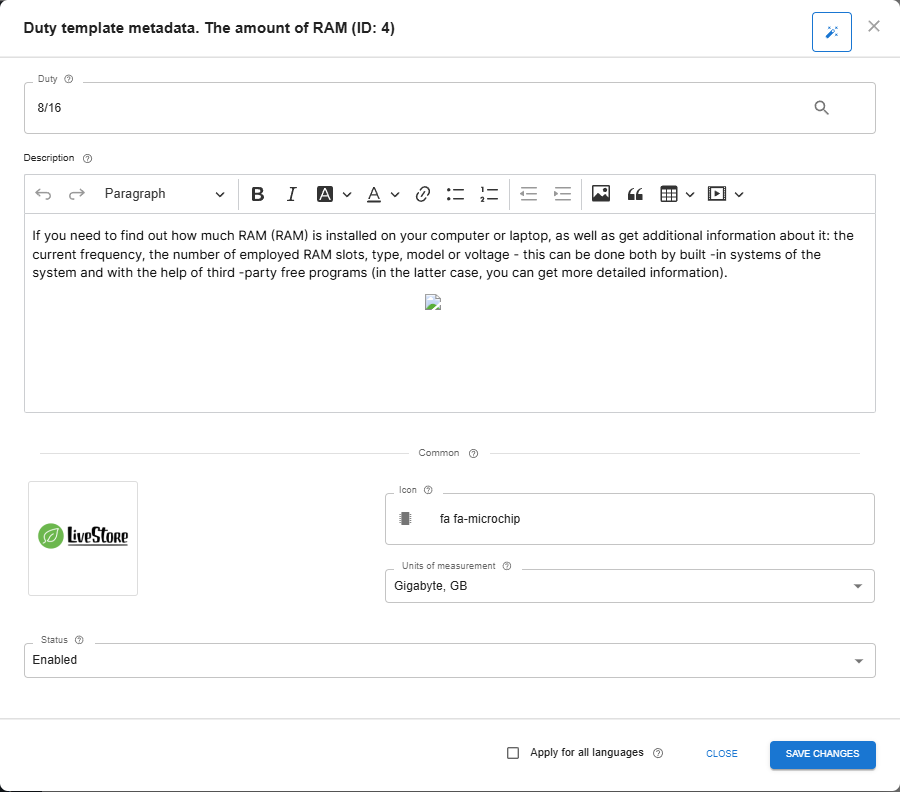 |
|---|
| Duty Template Metadata Editor |
Field functions mirror those described in Metadata Editing Guide.
Deleting Duty Templates
Deletion Workflow:
- Select target on
Attributestab - Execute via:
- Context menu
Delkey
⚠ Important:
- Affects only template and its metadata
- No product data modifications
Cloning Duty Templates
Clone language-agnostic templates (e.g., 20°C - 40°C, 2G/3G/4G) across locales:
Methods:
- Context menu → "Clone"
- Keyboard shortcut:
Alt + C
✅ Metadata clones simultaneously with template content
AI Form Fill (Magic Button)
You can automatically fill in the metadata form fields using Artificial Intelligence. To do this, click the magic icon button (✨) at the top of the duty template form.
The AI will analyze the attribute group and the attribute itself, and then automatically generate for the Duty Template:
- A practical Tooltip explanation
- An appropriate icon from the Font Awesome set
- The most suitable Unit of measurement from those available in the system
For this feature to work, you must have an OpenAI API key configured in the module settings. The AI takes into account the currently selected editing language and returns the result in that language. The AI does not generate the template value itself, as it requires your specific input.