Settings Backup and Restore
Starting with the current module version, settings export and import functionality is available.
This feature allows you to quickly transfer configuration between stores, create backups before making changes, and restore a known working setup when needed.
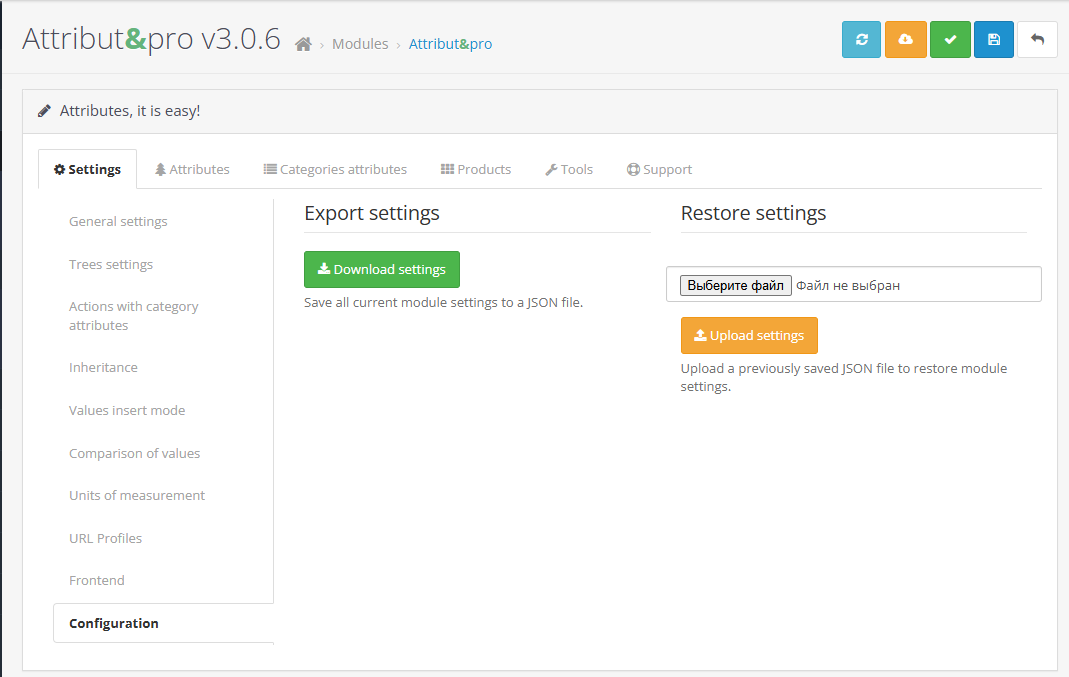 |
|---|
| Settings backup tab |
Location
The feature is available under:
Settings → Configuration
The interface is divided into two sections:
- Settings export
- Settings restore
Export (saving) settings
Export creates a JSON file containing all current module settings.
To export settings:
- Open the Backup tab.
- Click Save settings.
- Your browser will automatically download the settings file.
The filename is generated automatically and includes a timestamp, for example:
attributipro_settings_2026-02-06T09-41-22.json
The file is saved using the browser’s standard download mechanism.
It will be placed in your system’s default download folder.
What the backup file contains
The backup file is in JSON format and includes:
- all module settings
- service metadata
- module version
- OpenCart version
- backup creation date
Example structure:
{
  "meta": {
    "module": "attributipro",
    "version": "x.x.x",
    "created_at": "YYYY-MM-DD HH:MM:SS",
    "opencart_version": "x.x.x.x"
  },
  "settings": {
    "...": "..."
  }
}
Metadata is used to validate compatibility during restore.
Restoring settings
Restore loads settings from a previously saved JSON file and overwrites the current module configuration.
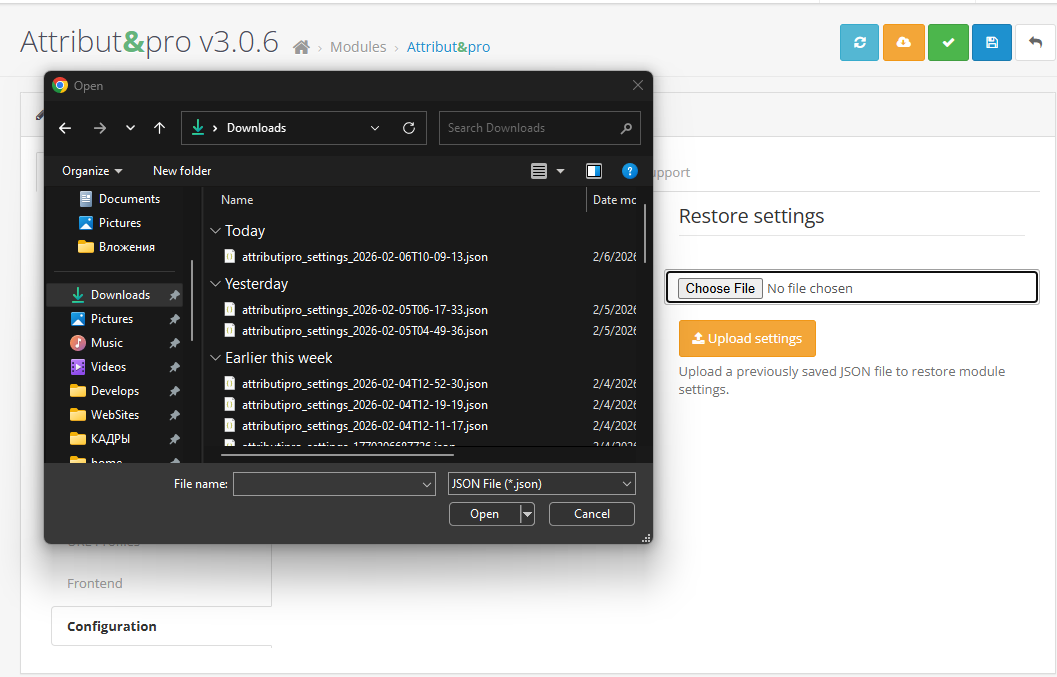 |
|---|
| Selecting a file and restoring settings |
To restore settings:
- Click the file selection button.
- Choose a backup JSON file.
- Click Restore settings.
- Confirm the action.
- After a successful restore, the page will reload automatically.
Restore overwrites the current module settings.
It is recommended to create a backup first.
File selection
File selection uses the standard system file dialog:
- on Windows — Windows Explorer
- on Linux — your desktop environment’s file manager
- on macOS — Finder
Only files in the following format are supported:
*.json
If no file is selected or the format is invalid, the restore operation will not proceed.
Compatibility checks during restore
The following automatic checks are performed during import:
- module name match
- valid JSON format
- non-empty settings set
- legacy format support (backward compatibility)
If the file was created by a different module, restore will be rejected.
Backward compatibility
Two backup formats are supported:
- ✅ new format — includes a
metablock - ✅ legacy format — settings only, without metadata
This allows you to restore backups created with earlier module versions.
Data storage specifics
Some internal settings fields are stored in serialized form.
During export, they are automatically converted to JSON structures, and during restore they are serialized back as required. This ensures:
- a human-readable backup file
- correct restoration of complex structures
- portability across versions
Recommended use cases
It is recommended to use backup and restore:
- before updating the module
- before making bulk configuration changes
- when migrating a store
- when configuring multiple stores with identical settings
- for staging and test environments